MISSIONALARM

iPhone and Android · Launching together

The alarm you can't snooze your way out of.

It rings through silent mode and Do Not Disturb, at your system alarm volume, using the same alarm system as the Clock app already on your phone. Then it asks you to do something physical before the morning counts. The alarm and four missions are free forever.

Get notified at launch Nothing has shipped yet · One email when it does

Scroll — one morning, six screens

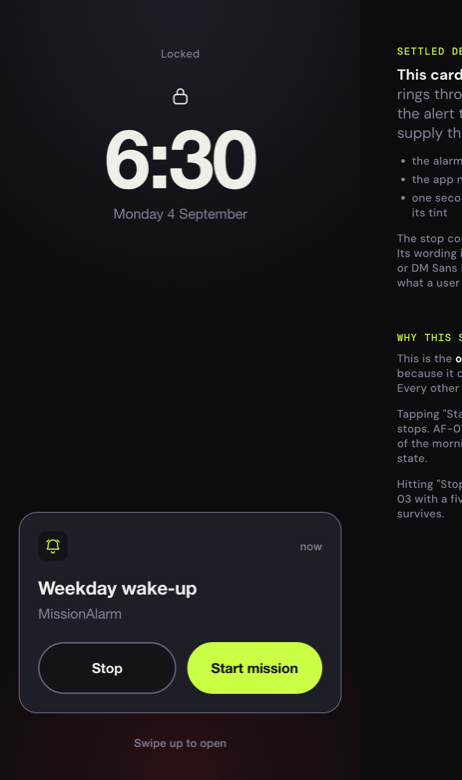
An iPhone Lock Screen at 6:30 showing the system alarm alert for an alarm named Weekday wake-up, with a Stop button and a Start mission button.
Lock screen 6:30. It rings through silent mode and Do Not Disturb, at your system alarm volume. Stop is always there. So is Start mission.
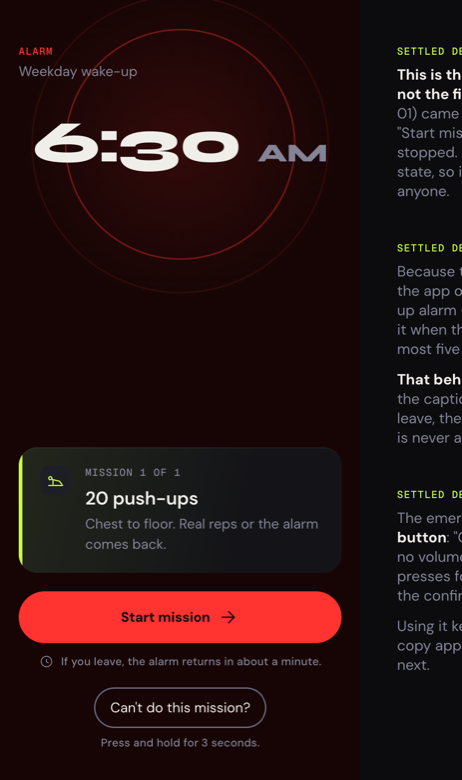
The MissionAlarm arrival screen: a large 6:30 time, a card naming the push-ups mission, and a Start mission button.
Blaze Mode You land here, not on a snooze button. Twenty push-ups. If you leave, the alarm returns in about a minute, and the screen says so first.
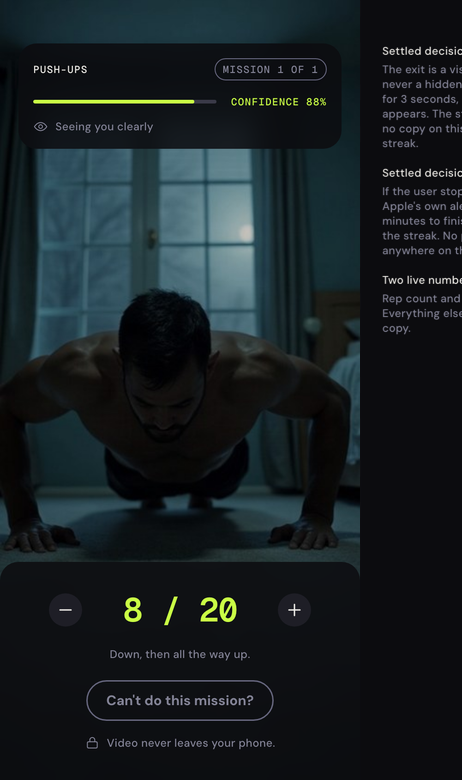
The push-up mission: a camera preview, a confidence meter reading 88 percent, a rep counter showing 8 of 20, and a labelled Can't do this mission button.
Push-ups Eight of twenty, counted by the camera at 88 percent confidence. The video never leaves your phone.
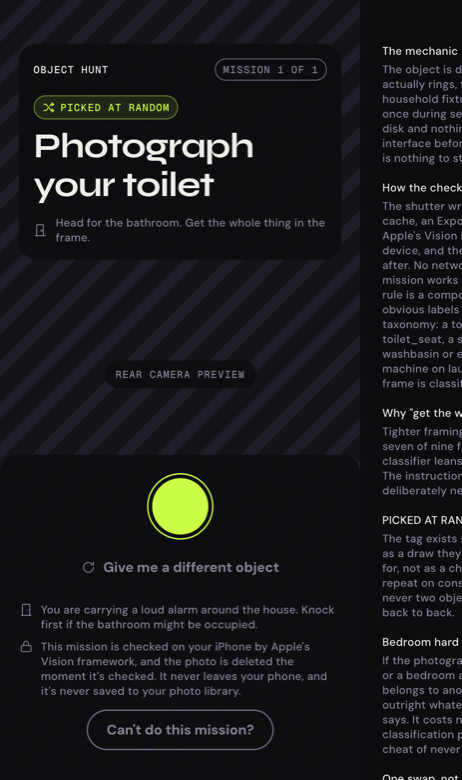
The object hunt mission: a card reading Photograph your toilet, tagged picked at random, above a camera shutter, a Give me a different object link and a labelled Can't do this mission button.
Object hunt Another morning, another object, drawn at random when the alarm rings. Checked on your phone, then the photo is deleted.
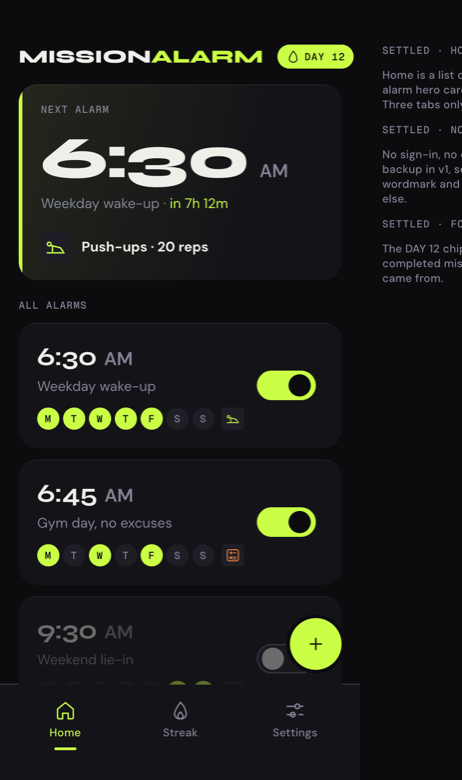
The MissionAlarm home screen: a next-alarm card showing 6:30 AM in 7 hours 12 minutes with a push-ups mission, above a list of saved alarms and a day 12 streak chip.
Home Day 12, and tomorrow is already set. Unlimited alarms and four missions, free forever.
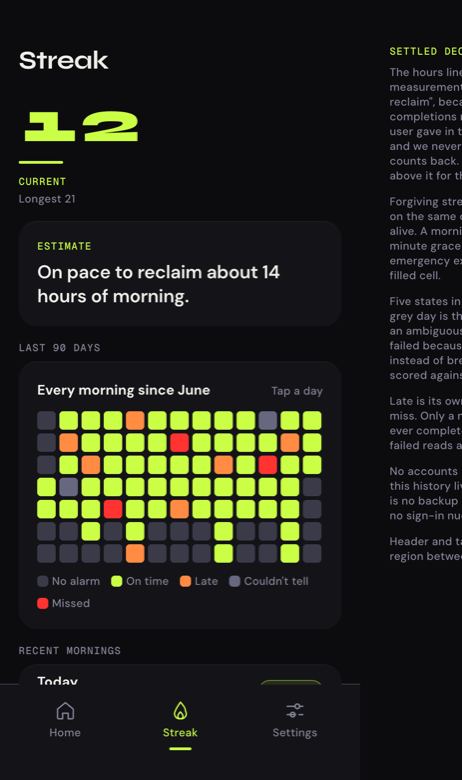
The streak screen: a 90-day heatmap of completed mornings above a list of recent mornings.
Streak Every morning since June. On time, late, missed, and the days we could not tell. We only score what we witnessed.

Where it runs

Both phones. One launch.

Neither version has shipped yet. There is no App Store listing and no Play Store listing to send you to, which is why the button on this page joins a waitlist instead of pretending to be a download. When they arrive, they arrive together.

iPhone

Launching together

Built on AlarmKit, Apple's own alarm system and the one the Clock app uses. That is what makes it ring through silent mode and Do Not Disturb at your system alarm volume, and it is also why it needs iOS 26.1: below that version, a custom alarm sound stops after one pass.

A beta comes first on both, and the store listings after it survives that.

Android

Launching together

Built on Android's own alarm and full-screen alert path, so it arrives with the same weight the system clock has. Two pieces are rebuilt rather than ported, because the on-device work shares no engine across the two systems: the rep counter and the object hunt each get an Android checker of their own, running on the phone exactly as they do on iPhone — nothing uploaded, and both still work with no signal.

Neither store has a listing yet. Both get one on the same day.

The mechanic

How a morning goes

Four steps. None of them is a button marked Snooze.

  1. Step 01

    It rings like your system alarm

    On iPhone it schedules through AlarmKit, the same alarm system the built-in Clock uses. On Android it goes through the platform's own alarm clock and full-screen alert path. Either way it rings through silent mode and Do Not Disturb, at your system alarm volume, and the operating system draws the alert: we supply the alarm's name, our name, and one button that says Start mission.

    An iPhone Lock Screen at 6:30 showing the system alarm alert for an alarm named Weekday wake-up, with a Stop button and a Start mission button.
  2. Step 02

    You land in the mission, not in a menu

    Tapping Start mission opens the app and Apple's alert stops. Waiting for you is the time, the mission you picked last night, and one button. Wander off and the alarm comes back in about a minute, which the screen tells you before it happens rather than after.

    The MissionAlarm arrival screen: a large 6:30 time, a card naming the push-ups mission, and a Start mission button.
  3. Step 03

    You prove it with your body, or your bathroom

    Push-ups counted by the front camera, with a confidence meter so you can see whether it is actually watching you, and plus and minus buttons within reach for the mornings it isn't. Push-ups and the object hunt are checked on your phone. Nothing is uploaded.

    The push-up mission: a camera preview, a confidence meter reading 88 percent, a rep counter showing 8 of 20, and a labelled Can't do this mission button.
  4. Step 04

    The morning gets logged, and the streak grows

    On time, late, missed and we couldn't tell are four different colours on the heatmap, because a morning the app did not witness is not a morning you failed. Finish the mission and you get a card worth sharing. Skip it and you don't — a trophy for a skip is not a trophy.

    The streak screen: a 90-day heatmap of completed mornings above a list of recent mornings.

In motion

The parts a screenshot can't show

A counter climbing, a meter settling, a heatmap filling in. These four are recreated from the real interface rather than filmed, so they stay sharp at any size and cost a few kilobytes instead of a few megabytes.

It rings Through silent mode and Do Not Disturb, at your system alarm volume. The operating system draws the alert, and its stop control is always there.
You prove it Twenty reps, counted by the front camera on the device. The meter is there so you can see whether it is actually watching you, and the manual buttons are for the mornings it isn't.
Or you hunt One household fixture, drawn when the alarm actually rings, so there is nothing to stage the night before. Checked on the phone, then the photo is deleted.
It gets logged Four colours, because they are four different things. A morning the app did not witness is grey, not red — it pauses the chain instead of breaking it.

The mission set

Seven ways to prove it

Four are free forever and every one of them works with no signal. Three send a single photo off for an AI check, and only after you have said yes to that once.

The object hunt is the one to try first. It names a fixture at random when the alarm rings, checks the photo on the device, and then deletes it.

The object hunt mission: a card reading Photograph your toilet, tagged picked at random, above a camera shutter, a Give me a different object link and a labelled Can't do this mission button.
Free

Push-ups

The front camera and on-device pose estimation, running natively on the device. A live confidence meter tells you whether it can see you, and manual plus and minus buttons are always on screen for when it can't. No video is recorded and none leaves the phone.

Checked on your phone
Free

Shake

The accelerometer, a threshold and a progress ring. Works in the dark, works with the camera permission denied, and works if you have no intention of doing a push-up this decade.

Checked on your phone
Free

Math

Arithmetic on a keypad. The least glamorous mission and the most reliable one, which is exactly why it is the one-tap fallback whenever anything else fails on us.

Checked on your phone
Free

Object hunt

The app names one household fixture — toilet, sink, stove, stairs — and wants a photograph of it. The object is drawn when the alarm actually rings, so there is nothing to stage the night before. An on-device classifier checks the shot on the device, the photo is deleted straight after, and a frame dominated by your bed is rejected.

Checked on your phone
Pro · 3 free

Make the bed

Photograph the bed you have just left. The check looks for sheets pulled up, pillows at the head and no bunched fabric, and tells you in one sentence what is wrong when it says no.

Checked by AI
Pro · 3 free

Touch grass

Outdoors, daylight, actual vegetation in the frame. The mission that makes you open the front door before you open anything else.

Checked by AI
Pro · 3 free

Pet hunt

Find the animal, photograph the animal. The animal will not be delighted about this at 6:30 in the morning. That part is between the two of you.

Checked by AI
About the three AI missions

AI photo missions send one photo to our AI provider to check it, then it's deleted. You are asked for permission once, before the first one ever runs, and "use a physical mission instead" is a button on that same screen. MissionAlarm keeps no copy; the provider holds API inputs for up to 30 days and does not train on them. The privacy policy names them and says exactly what leaves the phone.

Every install gets three free verifications, and only a pass spends one. A check that times out, errors or comes back wrong costs you nothing, and swaps to a physical mission that counts as a full completion. Our server having a bad morning is not allowed to end your streak.

The part that matters

What's free, and what isn't

The apps in this category tend to put a subscription wall in front of setting a single alarm. Here is the whole split, before you download anything.

Every alarm on the right is one a free account can set, keep and edit forever.

The MissionAlarm home screen: a next-alarm card showing 6:30 AM in 7 hours 12 minutes with a push-ups mission, above a list of saved alarms and a day 12 streak chip.

Free forever

No account, no sign-in
  • The alarm itselfOn every plan, including expired and cancelled ones.
  • Unlimited alarmsNo cap and no eleventh-alarm upsell sheet.
  • Push-ups, shake and math
  • The object hunt, whole poolEvery fixture, on every branch, offline.
  • Free alarm soundsIncluding one that is not remotely subtle.
  • Streaks, the 90-day heatmap and morning cards
  • Export your whole historyA file you own, whenever you ask for it.
  • Three AI photo verifications per installOnly a pass spends one. Failures are free forever.

Pro

From $29.99 a year
  • AI photo missions, up to 10 a dayThe number is printed here on purpose. A cap that lives only in a rate limiter is a promise waiting to break at 6:14am.
  • Mission stackingTwo or three missions on one alarm, for the genuinely unwakeable.
  • The full alarm sound library
The line that runs under all of it

The alarm is never gated. Not on day one, not when a trial ends, not after you cancel. And the paywall cannot open while an alarm is ringing or a mission is in flight — that is a hard guard in the code with a CI check standing behind it, not a sentence in a footer.

Get notified at launch Free forever · iPhone and Android

The limits

Honest about what an alarm app can do

Four things a marketing page would rather you did not read. We would rather you read them now than discover them at 6:14 on a Tuesday.

The system alert always has a stop control

On iPhone, AlarmKit draws the Lock Screen alert and it carries a slide-to-stop that we cannot remove, move, rename or tint. Android's alarm alert has its own dismiss, and its own way out of the app. Any alarm app claiming otherwise is describing an operating system that does not exist. The mission is streak-enforced, not physically inescapable, and ours does not pretend to be.

Stopping it without the mission is always possible. It just doesn't count

Stop the alarm and nothing bad happens to you. The morning is logged as stopped early, and you get a five-minute window in which finishing the mission still keeps your streak. Every mission also carries a labelled "Can't do this mission?" from its first second, on every plan — and using it keeps your streak too, because that exit mostly exists for the mornings when our detection is the thing that failed.

We cannot set your volume, so we don't pretend to

On iPhone, iOS gives no app an API to read or change the ringer or the alarm volume. An app showing you a volume percentage or a "volume guard" toggle is showing you a number it invented. MissionAlarm rings at your system alarm volume, through silent mode and Do Not Disturb, because that is what the system alarm does. Save an alarm and the app can fire a real one ten seconds later so you can hear it for yourself, then point you at the Settings screen that changes it.

Your streak lives on this phone

No account means no sync, no cloud backup and no cross-device restore in this version. Your history sits on the device and in your iPhone backup, and Settings has an export. Purchases restore through the App Store, which is why Restore Purchases sits above the fold instead of three levels down.

Pricing

Three rungs. No weekly plan.

We deleted the weekly option. Priced the way this category prices it, a weekly plan annualises to more than eight times our yearly — the smallest number on the screen being the most expensive thing on it is a trick, not a kindness.

Monthly

$7.99/ month

7-day free trial

Month to month, at full weight and never greyed out. Change your mind in the App Store whenever you like.

Lifetime

$59.99once

No trial

Apple does not allow a free trial on a one-time purchase, so there is no badge here promising one. Pay once, nothing renews, and the app tells you there is nothing to cancel if you go looking.

One trial per account. Monthly and Annual share a single subscription group, so the store grants one introductory offer per Apple ID. If your account is not eligible, the trial badge disappears rather than lying to you and billing you on day one.

Cancelling. Settings has a Manage subscription row that opens your App Store subscriptions. Apple's own sheet does the cancelling, with its own confirm step, and we find out about it afterwards. No retention maze and no discount interstitial in the way. Pro stays on until the period you paid for runs out, and your alarms keep working either way.

The streak is never monetised. No freeze, no repair, no insurance, no restore behind Pro, and no paywall that opens because a streak is at risk.

Nothing is on sale yet. Neither version has shipped, so nobody has been charged anything. These are the prices we intend to launch with, and if they move before launch this page moves with them.

Prices shown in US dollars. Your local store shows your local price. The iPhone version requires iOS 26.1 or later.
Get notified at launch Start free · Upgrade only if you want to

The waitlist

Hear about it the day there is something to install

No store listing exists for either phone yet, so there is nothing honest to link to. Leave an address, say which phone you actually wake up next to, and that is the whole arrangement.

You're on the list.

One email, when there is a build you can install. Nothing else arrives from us in the meantime.

That address is already on the list.

Nothing else to do, since there is only the one email to send.

That did not send.

Check the address and try again. If it keeps failing, write to us and we will add you by hand.

Which phone

Both versions land on the same day. Telling us which phone you actually wake up next to is how you get sent the right store link, and it is the only thing this question is for.

One email, sent when there is a build you can install. No newsletter, no countdown, no launch-week reminders, and your address goes to nobody else. Ask us and it is deleted.